Compliance Tracker 365 uses terms to target content to people. This approach—called audience segmentation—defines a list of terms that identify readers of content.
All terms are managed in the Term Stores and can be applied to any content. They can also be shared across sites if needed.
🔐 Permissions and Roles
To manage user profiles and generate reports, content managers must either:
- Be a Site Collection Administrator, or
- Be assigned a role in the Compliance Tracker 365 Management Centre.
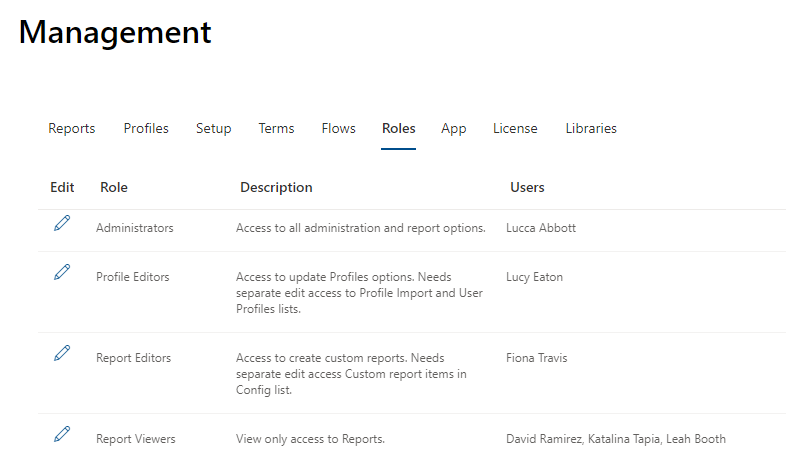
👉 See Roles for more details.
📝 Defining Terms
Terms can represent many types of identifiers, such as:
- People’s positions (e.g., People Manager)
- Responsibilities (e.g., Fire Warden)
- Business content (e.g., Monthly Sales Report)
- Assets people have (e.g., Mobile phone)
- Location-specific material (e.g., Head Office Induction)
- Courses (e.g., Working at Heights)
- News alerts (e.g., Sydney News)
Key concept: A term identifies both the content being read and the people reading it.
Creating Term Sets
- Term sets can be created globally (available across sites) via the Term Store, or within a specific site by a Site Collection Administrator.
- See Microsoft Docs: Managed Metadata for more details.
- Terms can be organised into a hierarchy, which is useful when managing hundreds of terms.
- See Create and manage terms in a term set for guidance.
Adding Terms
- Open the Term Set from the Profile Management side panel or the Terms tab.
- Newly added terms may need to be selected by typing the term name if they are not immediately visible.
👤 Creating User Profiles
User Profiles allow you to assign terms to users based on:
- Security groups
- Distribution groups
- M365 groups
- User profile properties
- Individual names
Accessing Profile Import
- The Profile Import tab is available from the Compliance Tracker management page:
/sitepages/ctfiles/manage.aspx - If you cannot access the Profile tab, contact the CT365 administrator.
Steps to Create a Profile
-
Click + New.

-
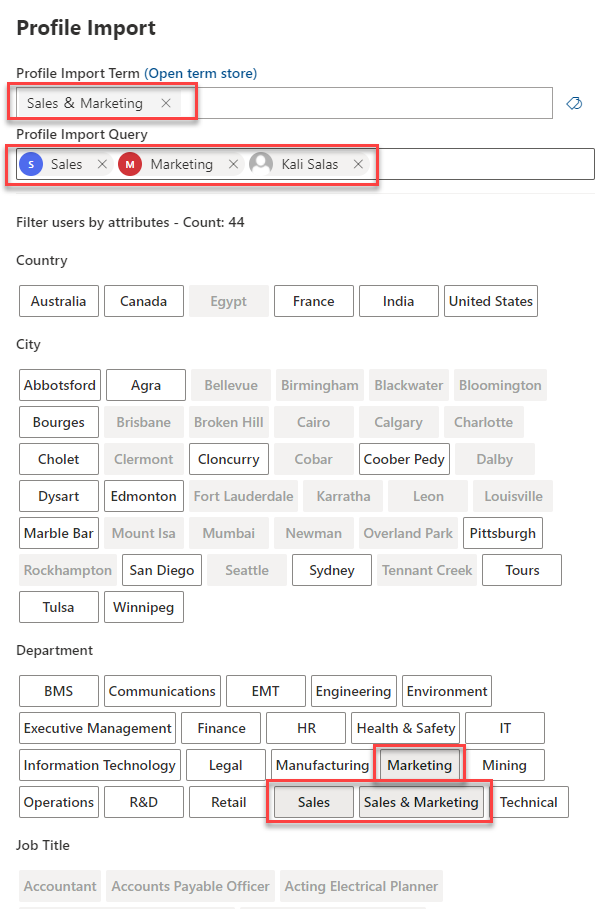
In the Profile Import side panel:
- Select the term to be used.
- Enter the groups or users to be associated with the term.
- Select any profile properties to add to the term.
- Click Save at the bottom.
-
Apply new terms:
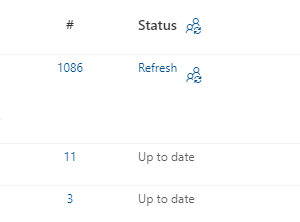
- Click the refresh person icon at the top of the Status column to update all terms.
- Click the refresh person icon at the end of a row to update an individual term.
- Click the # number to see who is currently associated with the term, or the Refresh link to view pending changes.
Notes
- If you see a message that changes are processing, try again in a few minutes.
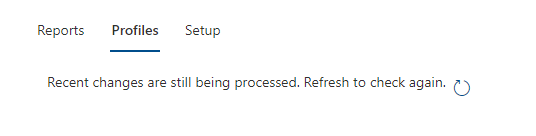
- If more than 15 minutes has passed since the last change, start a reindex of the CT User Profile list from:
List Settings > Advanced Settings - ⚠️ Do not run this more than once per hour.
📚 Enabling Libraries
To tag content:
- Apply Compliance Tracker 365 to relevant libraries using the Libraries tab.
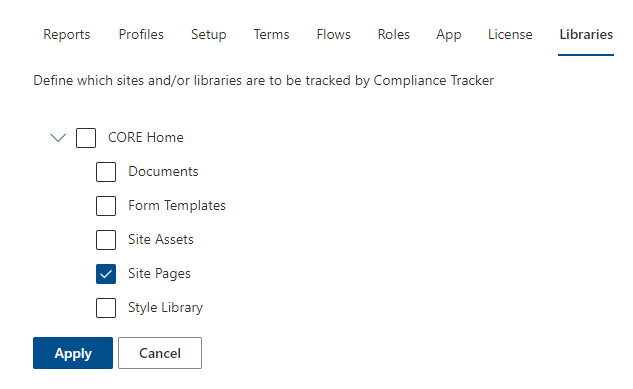
- This only needs to be done once.
- Once applied, Mandatory and Optional columns will be available in the library to tag content.
- Terms and Tracker Types can be added to documents/pages from:
- The standard library view, or
- The Tracker web part.