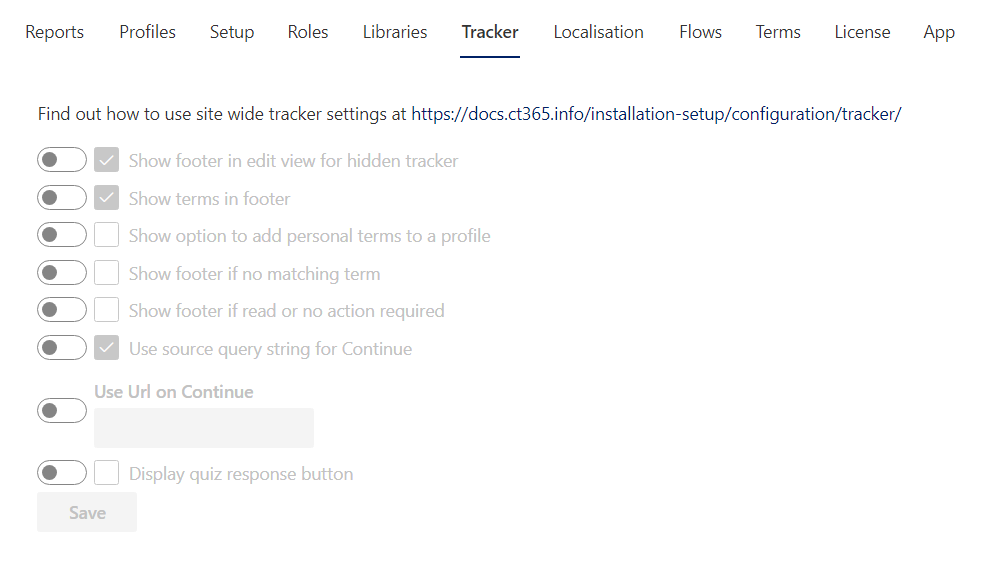
The Tracker tab is used to configure and adjust the behaviour of Trackers across the site.
⚙️ Key Details
- Each site collection has its own Tracker settings.
- Individual page or document Trackers can be configured separately via the Info panel.
- Toggle ON → Allows updates to override the default value.
- Toggle OFF → Restores the default value.
📋 Options
- 👁️ Show tracker in edit view for hidden
Displays the tracker even when the item is hidden, but only while editing so authors can still manage it. - 🔍 Show matching term in tracker
Highlights or displays the term that matches the user’s current context inside the tracker. - ➕ Show option to add personal term to profile
Allows users to add a term to their personal profile for personalization. - 📭 Show tracker if no matching term
Ensures the tracker still appears even when no term matches, provides access to back option. - 📘 Show tracker if read or no action required
Keeps the tracker visible for items already read or requiring no action, provides access to the menu. - 📥 Show download file
Displays a download option for files. - ⭐ Show favourite option
Enables a favourite or bookmark action so users can save items for quick in My Reads. Enabling favourites is site wide. - 🔗 Use source query string for Continue
Passes the original query string into the Continue action, preserving navigation context. - 🌐 Url to use on Continue
Specifies the destination URL when the user selects Continue.
Requires advanced tracker type licensing
- 📝 Display quiz response button
Shows a button that lets users view quiz responses. - 🖋️ Enable feedback
Enables feedback on all tracker types from the tracker menu. Enabling feedback is site wide.
💾 Saving Changes
Always ensure that any updates are saved at the bottom of the page to apply the changes.