Scheduled reports automatically generate report outputs and send notifications based on a defined schedule and notification template.
Each report definition includes:
- A report query (similar to Instant reports)
- An associated notification or schedule template
Report definitions can be copied and customised to suit specific requirements.
Standard report types
-
View reports
Generate CSV files that are saved to the Reports library within each site. -
Compliance reports
Send email notifications for:- Content missed in the previous week
- Content missed in the previous month
- News missed last week
Note: All standard reports are disabled by default. Notification are not send where out of the office is enabled.
Create a scheduled notification report
-
Navigate to
Management > Reports > Other reports > Site report

-
Set Processing method to Scheduled

-
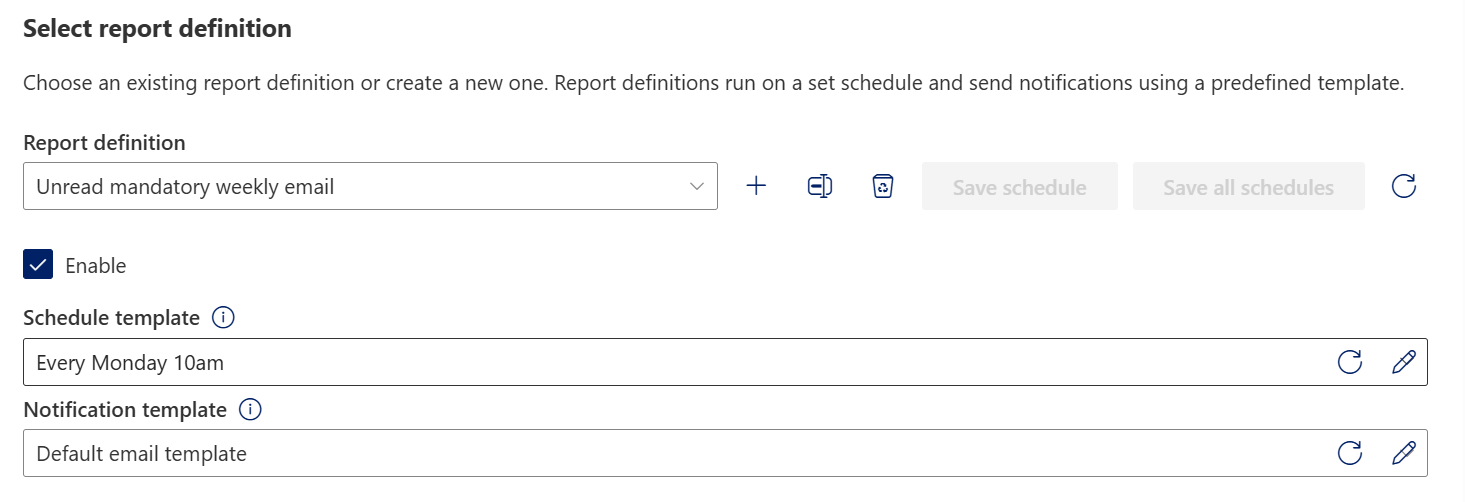
Select a report definition, for example:
Standard > Unread mandatory weekly email
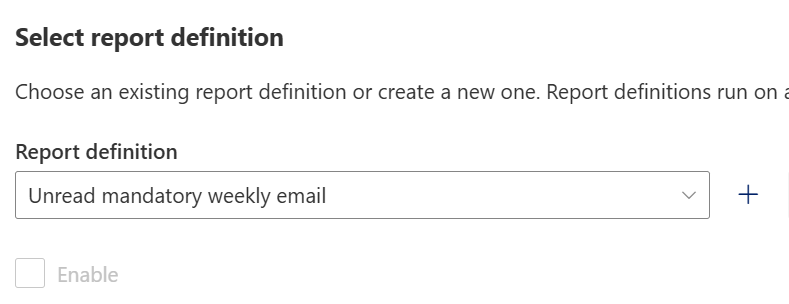
-
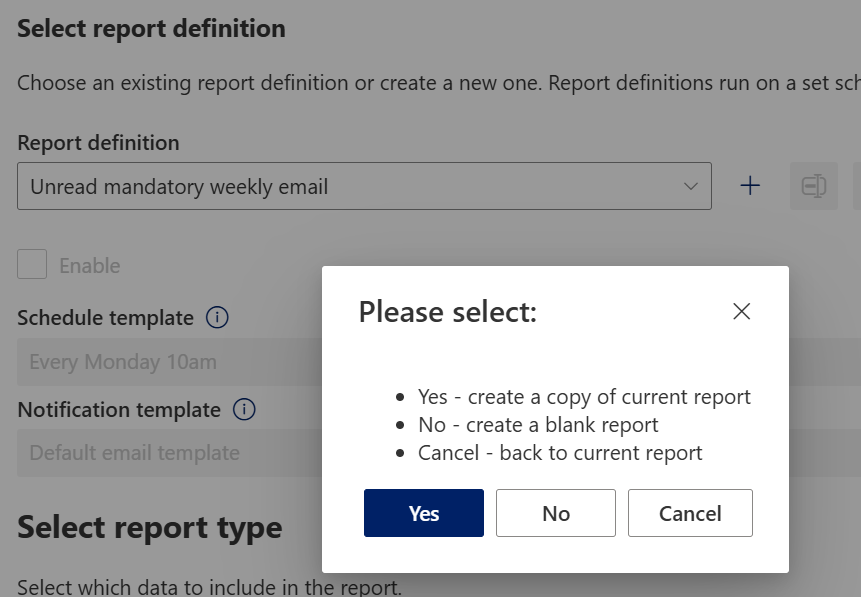
Click +, then:
- Select Yes
- Click Add
This creates a copy of the selected report definition
-
Select or edit a Schedule template
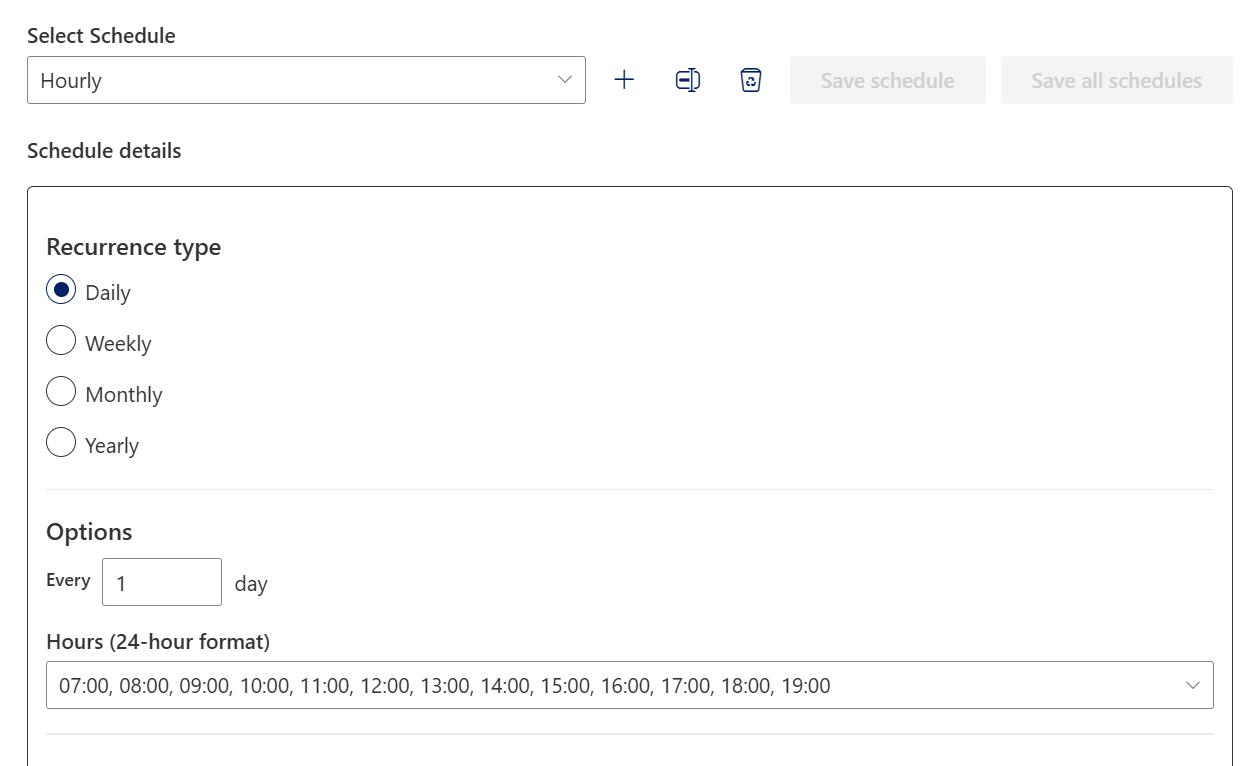
-
Click Enable, then Save schedule
Create a scheduled view report
-
Navigate to
Management > Reports > Other reports > Site report -
Set Processing method to Scheduled
-
Select Standard > View report from the Report definition list
-
Click +, then:
- Select Yes
- Click Add
This creates a copy of the report
-
Select a Schedule template, then:
- Click Enable
- Click Save schedule
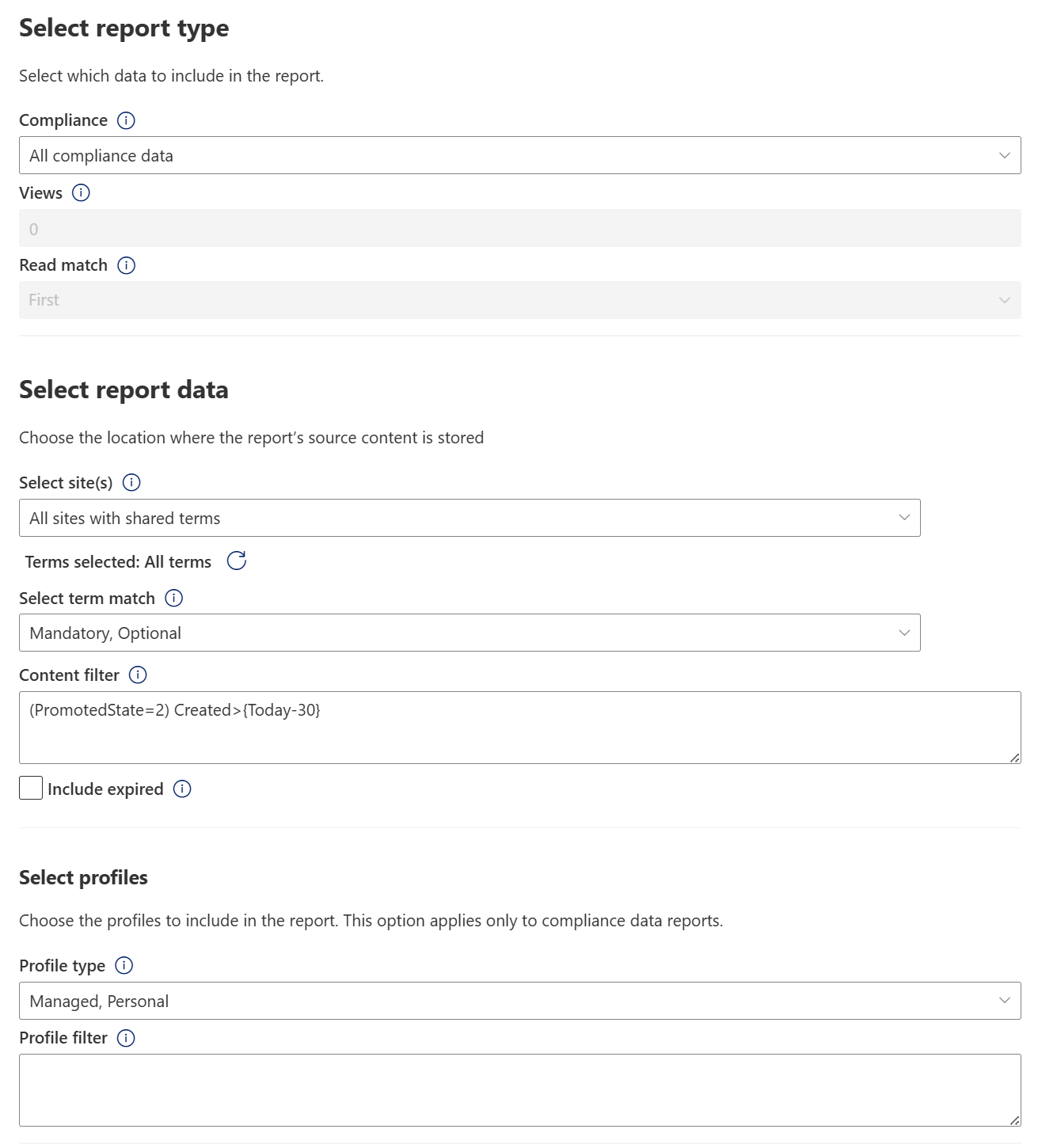
Report type
Use Report type to control which data is included in the report.
- Ensure relevant data sources are selected
- If your site uses Personal profiles or Optional targeting, ensure these are included