The Notifications tab is used to create and manage the email and Teams notification templates used in scheduled report definitions.
Notification templates are shared across scheduled report definitions in the site to help with consistent messaging and to allow templates to be reused across multiple reports.
To create a custom notification template, start from a standard template, then give your new template a name and description. After that, complete the notification template form with the fields described below.
📝 Notification Template Fields
General Fields
-
Notification Template
Provide a clear, descriptive name based on the intended use. -
Description
Add a short explanation of the purpose or configuration of the template. -
Notification Type
Choose Email or Teams depending on how the notification will be delivered.
✉️ Email Template Fields
-
Subject
The subject line of the email. Tokens may be used. -
To
Enter text reader or manager, depending who should receive the email. Usually set to reader. -
Cc
Enter text reader or manager. Usually manager or left blank. -
Bcc
Enter text reader or manager. Usually left blank. -
From (send as)
Leave blank to send from the workflow connection account.
If you enter another email address, it must have Send As permissions in Exchange. -
Send summary report to
Leave blank to send the summary to the workflow connection account.
Enter another email address to send the summary elsewhere. -
Heading
Text displayed at the top of the email. Tokens may be used. -
Banner Color
A hex colour (e.g.,#d55c19) or a colour name. -
Banner Image URL
Example:https://docs.compliancetracker365.com/images/CT_Logo_Horizontal.png -
Body HTML
HTML content displayed above the default message. Tokens may be used.
(e.g.,<p>Hi {GivenName},<br>Please review the information below and, where prompted, confirm that you have read the content.</p>). -
Body Type
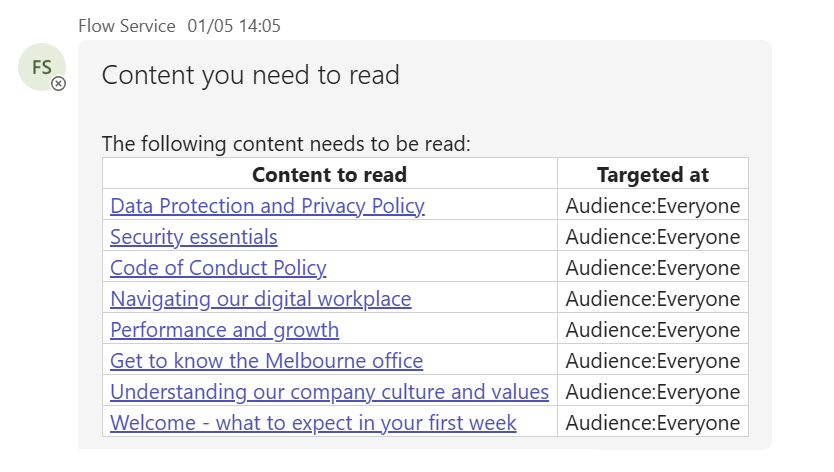
Select the format for the body content.- list - displays a table containing links to each file to read and the targeted term
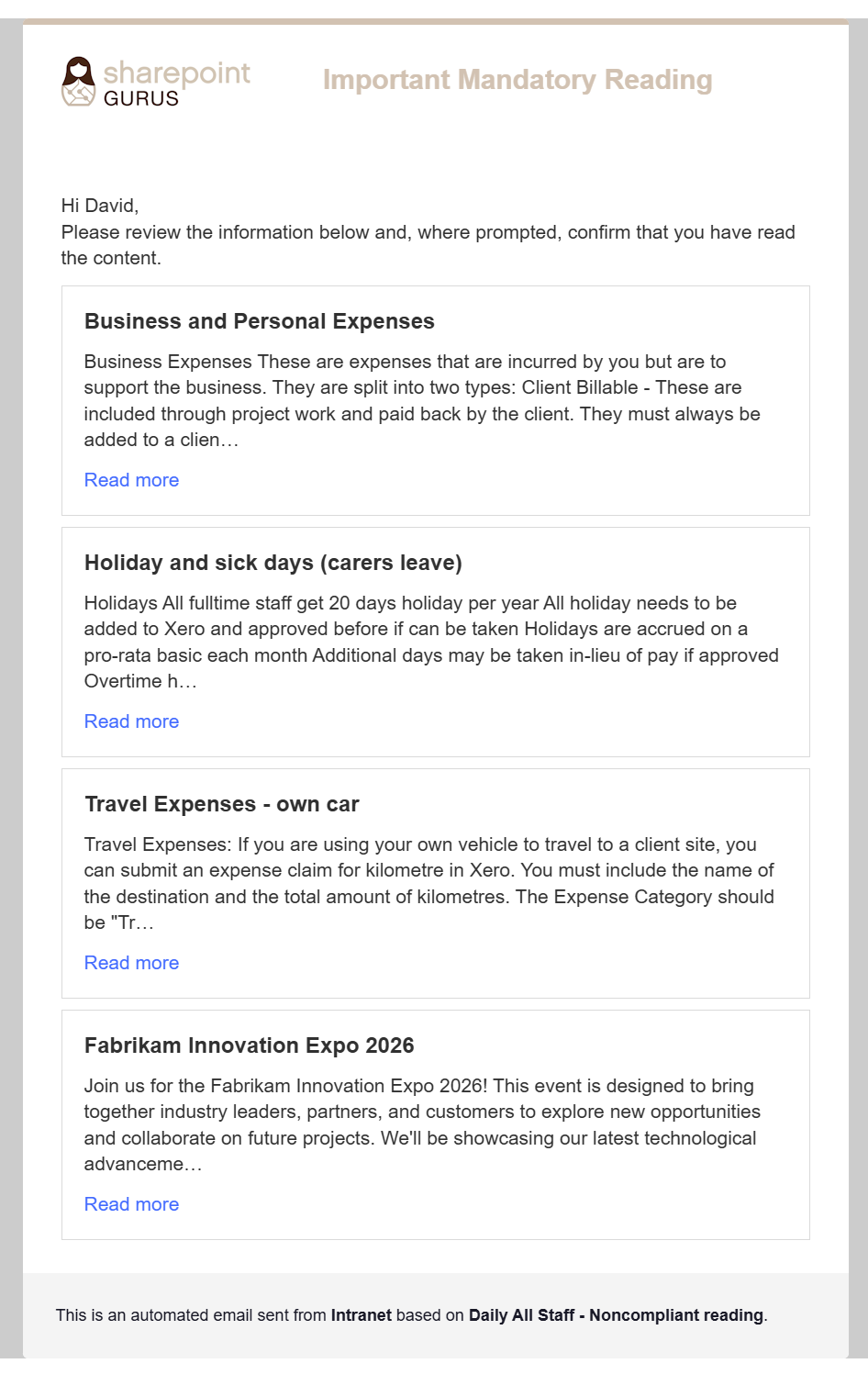
- cards - display text only card with the title, summary and link to content
- news - displays the title, summary and thumbnail for the content
- summary - displays a link to the My Reads page in each site where content needs to be read
-
Footer
Text or HTML displayed at the bottom of the email.
💬 Teams Template Fields
Teams templates use a similar structure to email templates:
- Subject - Displayed at the top of the Teams message
- To - Set to reader
- Body HTML Displayed above the body type for lists and summary
- Default text if blank
Hello *Full Name*, Here is some content you might have missed:
- Default text if blank
- Body Type
- list - displays in a table with link to content and targeted term
- summary - displays a link to the My Reads page in the site where content needs to be read.
- cards - displays the title, summary and link to the content. Always used default body HTML.
🧩 Tokens
Tokens can be used in the Subject, Heading, Body, and Footer fields.
They are automatically replaced at runtime—ensure they are entered exactly as shown (including curly brackets).
{ReportSiteName}— e.g., The Hub{NotificationTemplate}— e.g., News missing last month{ReportTemplate}— e.g., News missing last month{ReportSiteUrl}- e.g., https://ct365.sharepoint.com/sites/thehub{GivenName}- e.g., Jon
Using tokens allows notifications to be personalised based on the report and recipient.
Email example using cards
Teams example using cards